Upload your recording
Add a screen recording of your website, app or software.
Create vertical clips from your app, website or software demo for TikTok, Reels and YouTube Shorts — with hooks, optional voiceover and branding.
Start with a screen recording. No spoken narration required.
MP4 & MOV recordings · 9:16 export · Download and share manually
Three steps
Add a screen recording of your website, app or software.
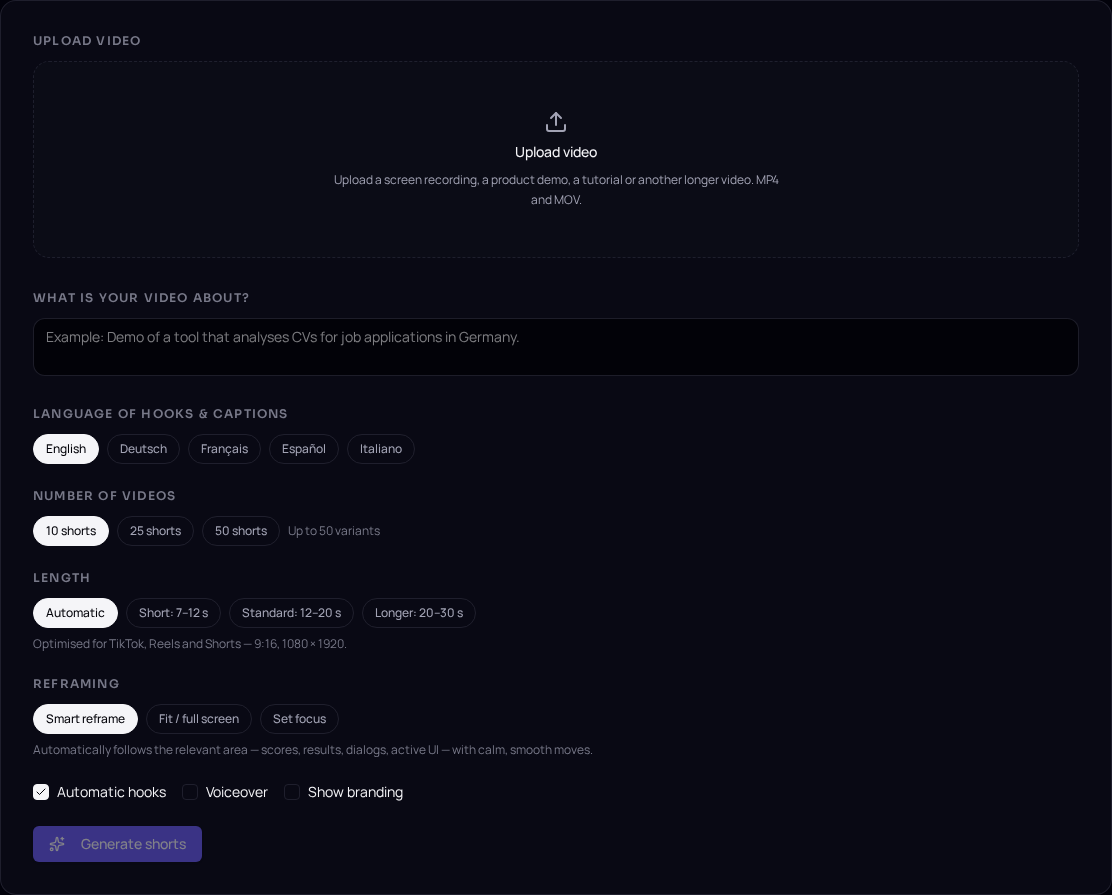
Choose clip length, quantity and the available options for framing, hooks, voiceover and branding.
Review your clips, adjust them using the existing editing options and download the versions you want.
Free includes one generation per month with fixed settings and a choice of language. Creator unlocks output settings, hooks and voiceover; custom branding is available on Pro. An account is required.
Use cases
For SaaS founders, app providers and anyone presenting a digital product.
Show how your app or software works in a short vertical video.
Turn a recording of your latest feature into a clip for social media.
Show a specific workflow or explain how to use a feature.
Your recording, your choices
Smart Reframe adjusts the crop around detected visual areas. Fit keeps the full recording visible with a blurred background; manual focus lets you choose an area. Check the result: a wide interface can still be small in a vertical frame.
Add and edit an opening hook displayed in the video. Separate post descriptions and hashtags are available to copy for your social post. These are not transcribed speech or automatic subtitles. Hooks require Creator or Pro.
On Creator and Pro, a recording without spoken explanation can be supplemented with a generated voiceover. Choose a voice and language, then review and edit its script before export.
Preview and select clips, adjust scene duration and zoom, or remove scenes. Edit available hook and voiceover text, then download your chosen exports. You publish them yourself.
Screen recordings of websites, apps and software demos with a clear feature or workflow. Frame the relevant area clearly and review small interface details in the vertical preview. Spoken narration is not required.
No. You can start with a silent screen recording. Optional generated voiceover is available on Creator and Pro; it does not transcribe the original recording. Automatic speech subtitles are not provided.
The export includes the original audio when your browser can capture it. With voiceover enabled, it is mixed beneath the new voice at a reduced volume. Audio capture and export compatibility depend on your browser.
Smart Reframe adjusts the crop, Fit shows the full frame on a blurred background, and manual focus uses your chosen area. Free uses Smart Reframe; Creator and Pro offer the other options. Export is 9:16 at 1080 × 1920. Always review framing and readability.
Shorts are assembled from analyzed moments of your recording. Segments may overlap or be reused, especially when you request many clips from limited material. You can also create a variation of an existing clip; every result is not guaranteed to be a unique scene.
The upload picker accepts MP4 and MOV; playback depends on browser codec support. Source recordings can be up to 30 minutes on Free and Creator, or 90 minutes on Pro. There is no explicit upload-size limit in the studio; large files depend on your device and browser. Downloads use MP4 where supported, otherwise WebM.
You can adjust scene durations and zoom, remove scenes from multi-scene clips, select or delete clips and create variations. Post descriptions and hashtags are separate editable text. Hook text, visibility and voiceover scripts can be edited where those options are available on your plan.
No. Download your chosen clips and upload them yourself to TikTok, Instagram Reels or YouTube Shorts. Post descriptions and hashtags can be copied separately.
Upload a screen recording, create your clips and review them before sharing.
Upload your recording